We’ve seen how to unflip videos using various video players on Windows, however that was only a temporary solution as the players merely unmirror the playing video. This is also the case for unmirroring videos online using browser extensions, as we saw on how to unmirror videos on Dailymotion.
A permanent solution requires the video to be edited with a video effect that mirrors the image. Most video converters out there however don’t usually support such an effect, save for some clipping, cropping and some simple video effects to adjust brightness and contrast.
As a result, you may be forced to use a commercial alternative or full-blown video editor suites such as Sony Vegas for this simple task. This is however unnecessary as you can use the free open source VirtualDub (VDub) with its filters to do this in a couple of minutes.
Let me show you how.
Step 1: Install VirtualDub2
- Download the latest version of VirtualDub2 from GitHub. There are two versions: the default version for 64-bit Windows versions and one labelled win32 for x32/32-bit Windows versions.
- The software is portable so to install it simply extract the 7z archive to a folder somewhere on your computer. You can use 7zip to do this.
Step 2: Unflip Video with Flip Horizontally Filter
- Run the program by running VirtualDub2.exe.
- Press Ctrl+O or go to
File > Open video file...and select the flipped video. You can also open the video by dragging and dropping it inside VirtualDub’s window. - In the toolbar go to
Video > Filtersor press Ctrl+F. - Click the Add… button, select the flip horizontally filter and then click OK to add it.
- You’ll now notice that the video on the preview side has been flipped. The easiest way to confirm this is to seek to a section in the video where there is some visible text like hard captions, credits or a watermark. The text should now be readable.
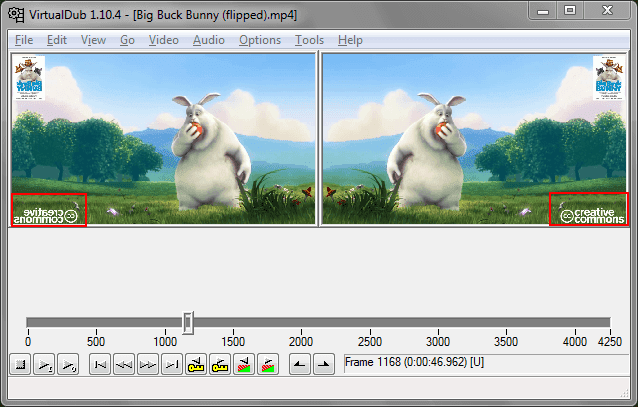
- Next, go to File and select Save video… or press F7.
- Select the folder where to save the video and in the Save as type dropdown select the video’s output format. For best compatibility select either MP4 or MKV.
- In the same window, go to the very bottom and click the Change button in the Video compression section.
- Next, choose the FFmpeg x264 codec for the widest compatibility on most devices. If you need better compression you can also use FFmpeg x265, however make sure your device supports playing this format (most modern devices do). Click OK when you’re done.
- Finally, click on the Save button to begin exporting your unmirrored video.
Note:
If you’re working with a lossless video and need to retain the lossless quality, then make sure to use one of the lossless codecs when exporting your video.